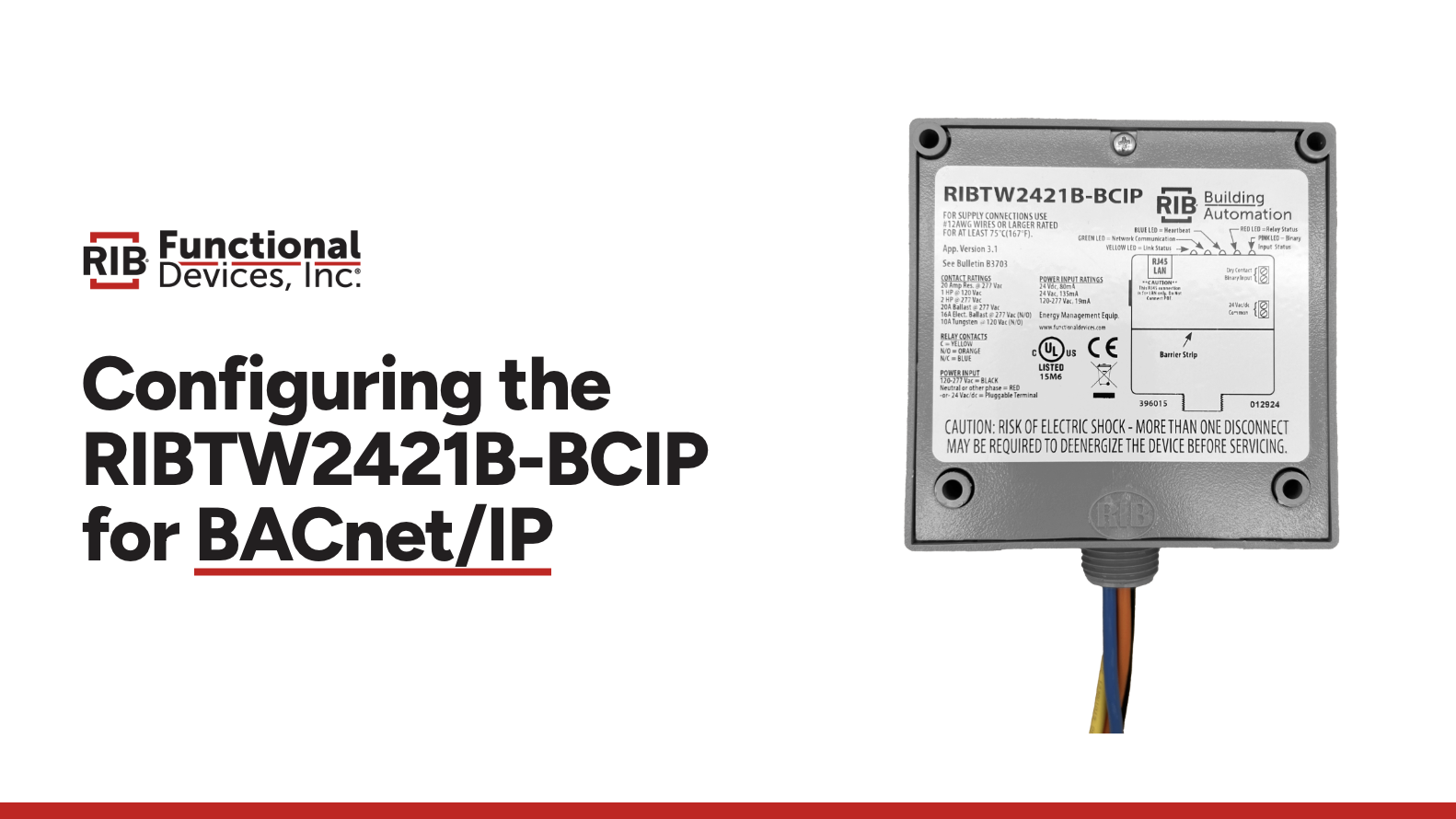
Functional Devices, Inc. manufactures the RIB® (Relay-In-a-Box®) line of network relays for building automation, including the BACnet/IP RIBTW2421B-BCIP. This guide covers RIBTW2421B-BCIP configuration in the field: the device is set up through its built-in web pages, which you reach either over its default static IP address or over a temporary DHCP address. Both routes end at the same configuration pages, where you assign the device a permanent IP address or set it to DHCP.
The device ships in static IP mode at 192.168.1.250. Two commissioning paths are available: connect a computer to that address directly (static IP mode), or place the device on a DHCP network to reach it at an assigned address (dynamic IP mode).

Static IP Mode Configuration
Out of the box, the RIBTW2421B-BCIP starts in static IP mode at 192.168.1.250. To reach its configuration pages, put a computer on the same network and subnet.
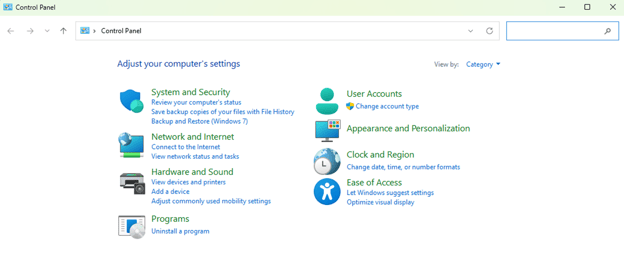
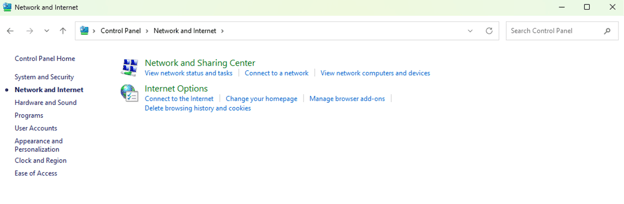
- Open the Windows Control Panel and go to Control Panel > Network and Internet > Network and Sharing Center.
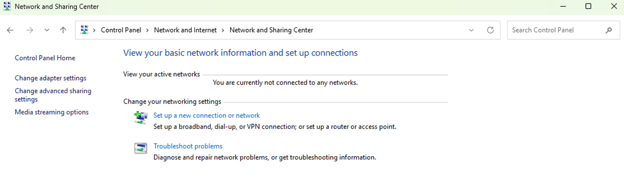
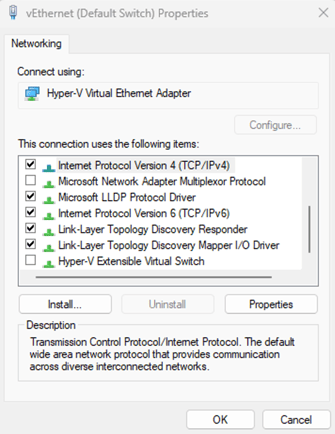
- Select Change adapter settings on the left to open the Network Connections window. Right-click the active connection and select Properties.

- Select Internet Protocol Version 4 (TCP/IPv4) and click Properties.
- Enter an IP address in the same subnet as the device, such as 192.168.1.20, and a subnet mask of 255.255.255.0.
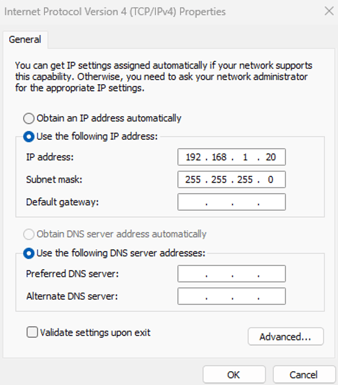
- Apply the settings, open a web browser, and enter 192.168.1.250 in the address bar. This opens the device's configuration pages.
Dynamic IP Mode Configuration
To reach the RIBTW2421B-BCIP over an existing DHCP network, put it into temporary DHCP mode and find the address it was assigned.
- Press the device's reset button three times in rapid succession. The device enters a temporary DHCP mode that lasts until the next power cycle.
- Determine the device's assigned IP address. From a command prompt, run arp -a to list the IP-to-MAC entries the computer has seen on the network and locate the device.

You can also read the address from the device's BACnet Network Port object using a BACnet tool.
- Enter the device's IP address in a web browser's address bar to open the configuration pages.
Reaching the Configuration Pages
Both paths open the same three pages:
- Status Page: The first page, showing device status.
- Network Configuration Page: The second page, where you assign a specific IP address or set the device to DHCP mode.
- BACnet Configuration Page: The final page, for BACnet settings.
To give the device a permanent address, go to the network configuration page and either enter a static IP address or set the device to DHCP mode. A setting made here persists after a power cycle, unlike the temporary DHCP mode reached with the reset button.
Frequently Asked Questions
What is the default IP address of the RIBTW2421B-BCIP?
The device ships in static IP mode at 192.168.1.250. To reach it, set a computer to the same subnet (for example, 192.168.1.20 with a subnet mask of 255.255.255.0) and enter 192.168.1.250 in a web browser.
How do I put the RIBTW2421B-BCIP into DHCP mode?
Press the reset button three times in rapid succession to enter a temporary DHCP mode that lasts until the next power cycle. To set DHCP permanently, open the network configuration page and set the device to DHCP mode there.
How do I find the RIBTW2421B-BCIP IP address on a DHCP network?
Run arp -a from a command prompt to list the IP-to-MAC entries on the network, or read the address from the device's BACnet Network Port object using a BACnet tool.

Find the RIBTW2421B-BCIP
To source the RIBTW2421B-BCIP BACnet/IP relay, view the RIBTW2421B-BCIP product page, browse the RIB® network relay lineup, or find an authorized Functional Devices distributor near you.